
A control surface on a screen you already own.
TouchCompanion turns a spare touch monitor into a customizable deck of widgets: media, sensors, gauges, timers, an app dock, hotkeys, a mic toggle, scriptable buttons, and full OBS & Twitch control.
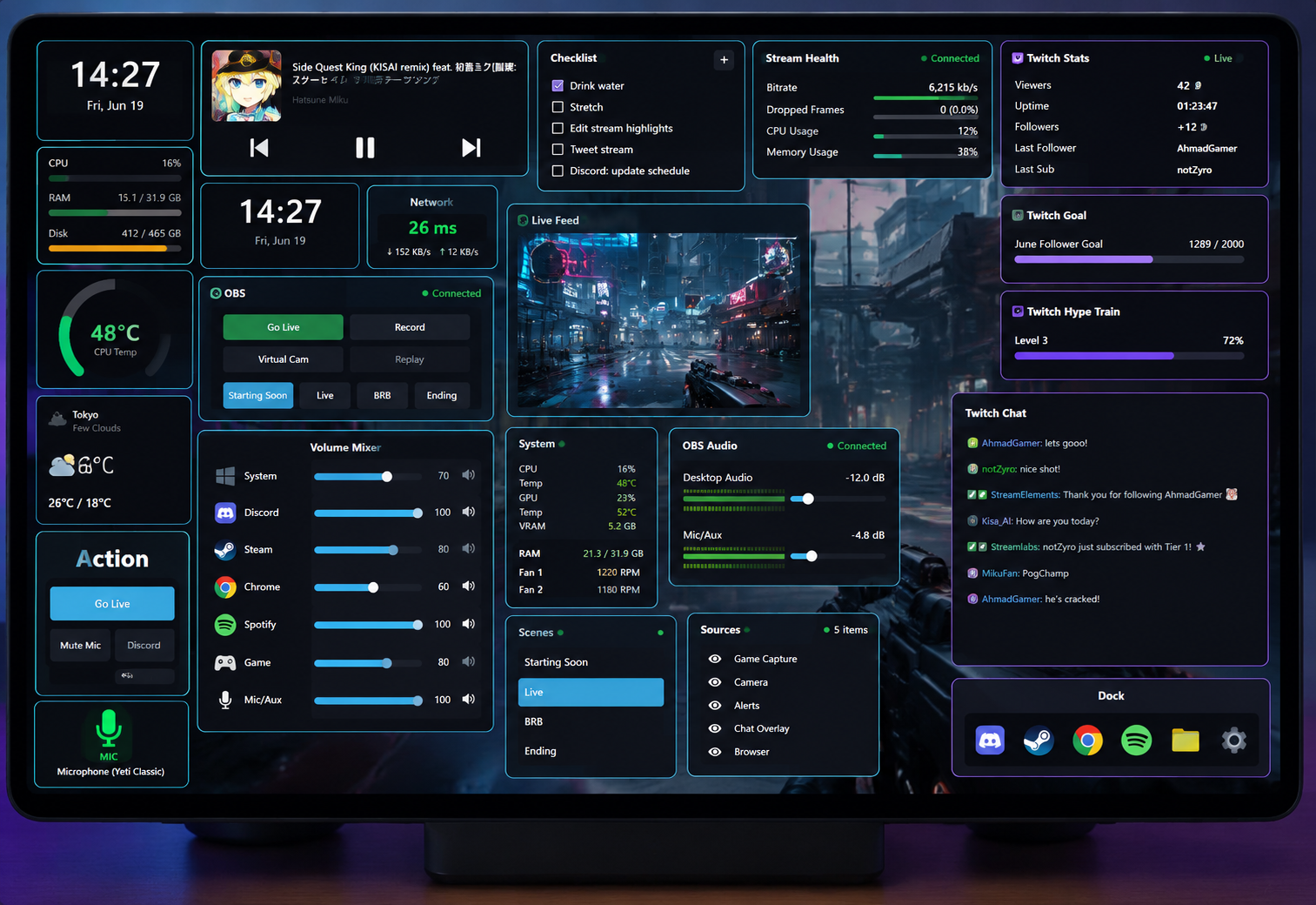
Touch a button without losing your game.
Most "touchscreen Stream Deck" apps steal focus the moment you tap them, which alt-tabs you out of a fullscreen game. That single failure makes them unusable while you play.
TouchCompanion runs a touch-proxy: when you tap a control, focus is instantly kept on, or returned to, the app you were using. The surface stays a tool, never an interruption.
- Never alt-tabs out of a fullscreen game
- Transparent, always-on-top overlay across one monitor
- Optional cursor pinning so the pointer stays put
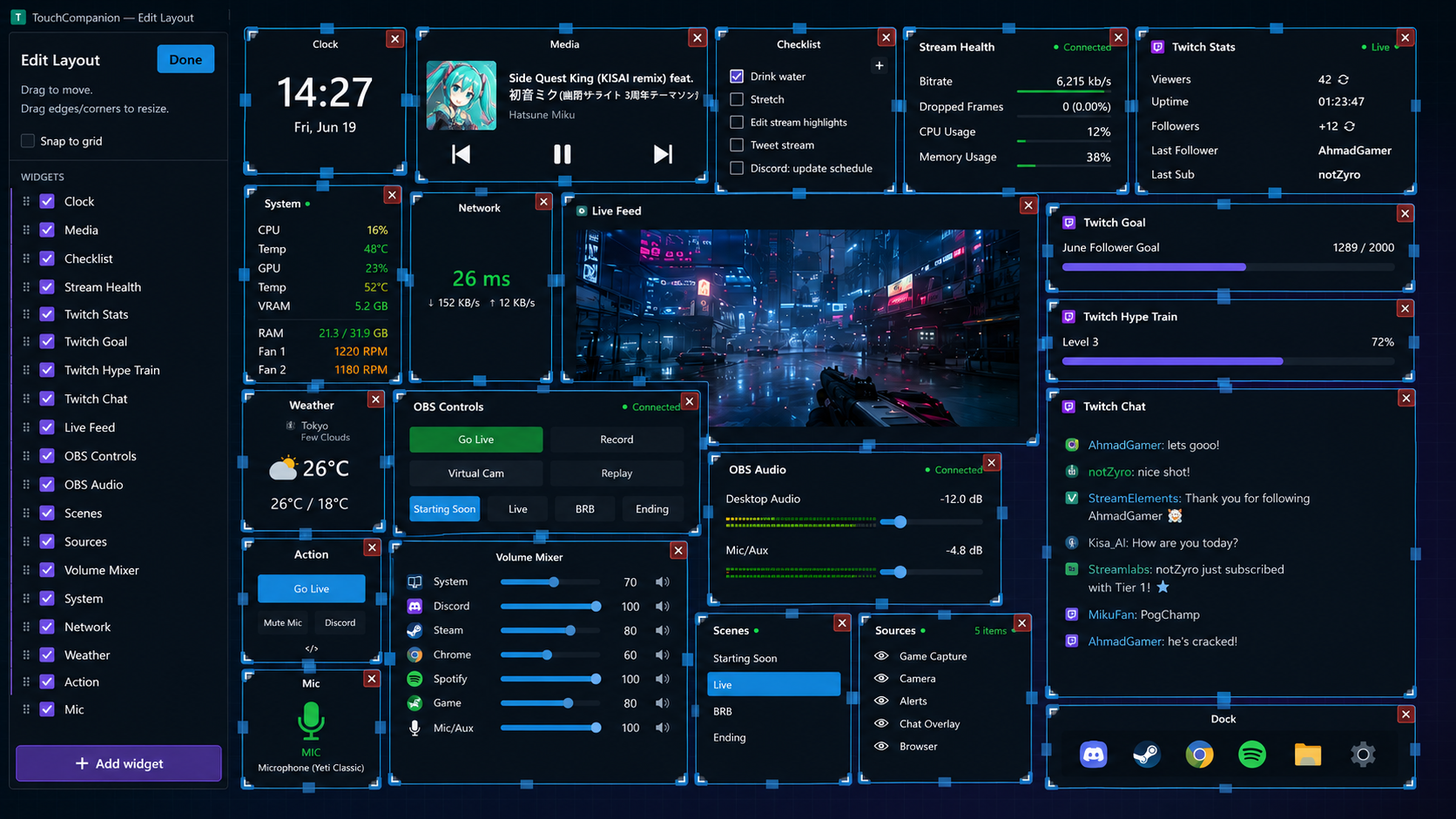
Place it, size it, make it yours.
Drag to place a tile, drag its corners to resize, toggle Edit Layout, and the arrangement persists. Gauges, hotkeys, actions, and OBS tiles can be added as many times as you like.
Media controls
Play, pause, skip, and album art for any app through Windows SMTC. One tap, no app switching, no matter what is playing.
System sensors & gauges
CPU and GPU load and temperature, RAM, and fans. Add radial dials or bars with a max threshold that shades green to orange to red.
Timers
Stopwatch or countdown, tap to start and pause. Drop one on the surface for breaks, segments, or speedrun splits.
App dock
Drag apps onto the surface to launch and focus them.
Hotkey buttons
Send any key combo, including media and volume keys, to the focused app.
Mic mute
One-tap mute of your default microphone, with live state on the tile.
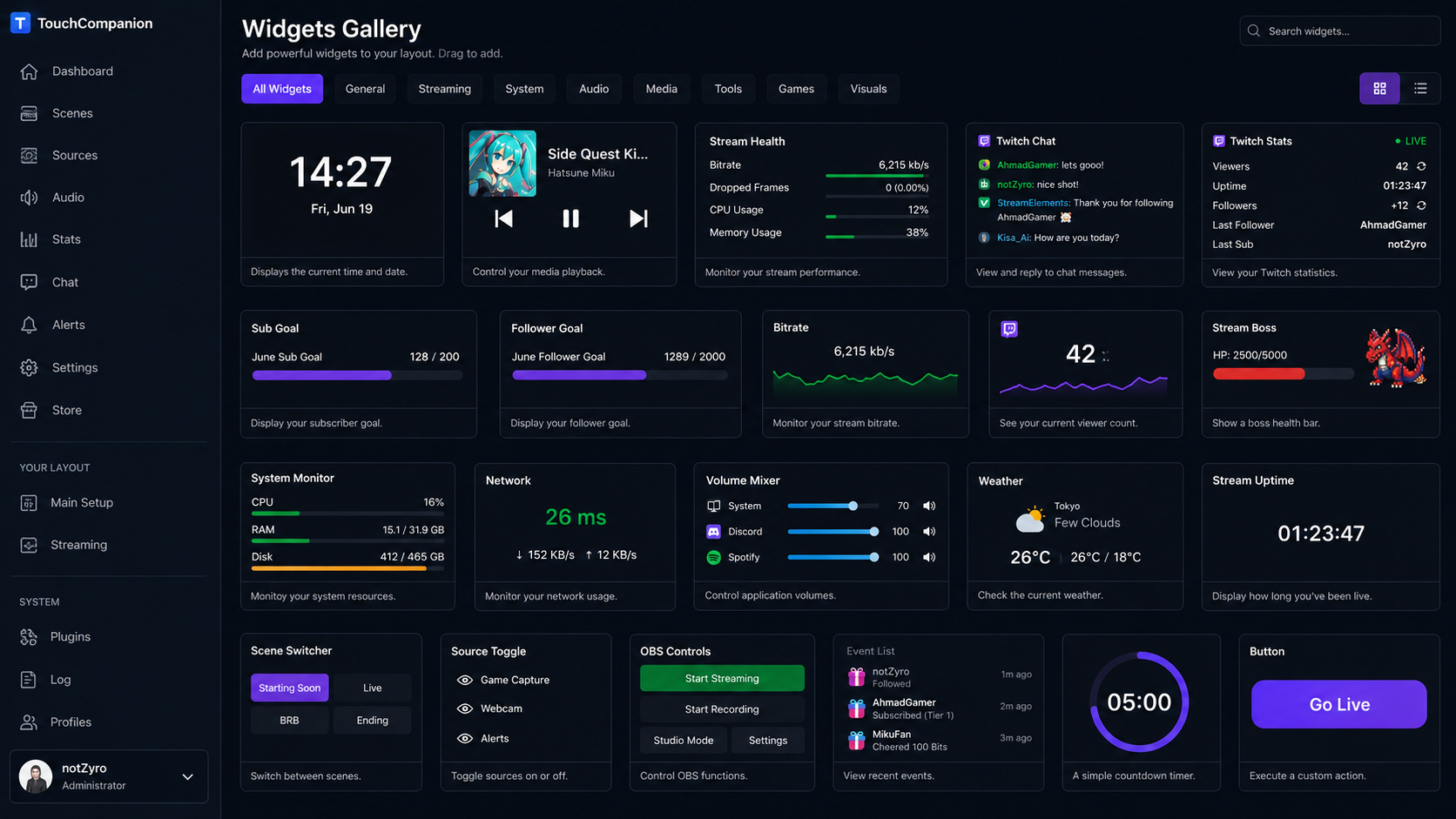
Tap a tile, run a macro.
Action tiles run a tiny script when tapped: open apps, URLs, or files, send shortcuts, type text, and chain it all together. One action per line, comments with #.
Skin any hotkey or action tile with a background image so the surface reads at a glance.
# "Go live" macro
open: https://dashboard.twitch.tv
delay: 1000
key: ctrl+shift+1

# greet chat
text: Hello chat!
| Command | What it does | Example |
|---|---|---|
| open: | Opens a URL, file, folder, or app with the default handler | open: https://twitch.tv |
| run: | Launches an executable with arguments | run: chrome.exe --incognito |
| key: | Sends a keyboard shortcut to the focused app | key: ctrl+shift+m |
| text: | Types literal text into the focused app | text: Hello chat! |
| delay: | Waits the given number of milliseconds | delay: 500 |
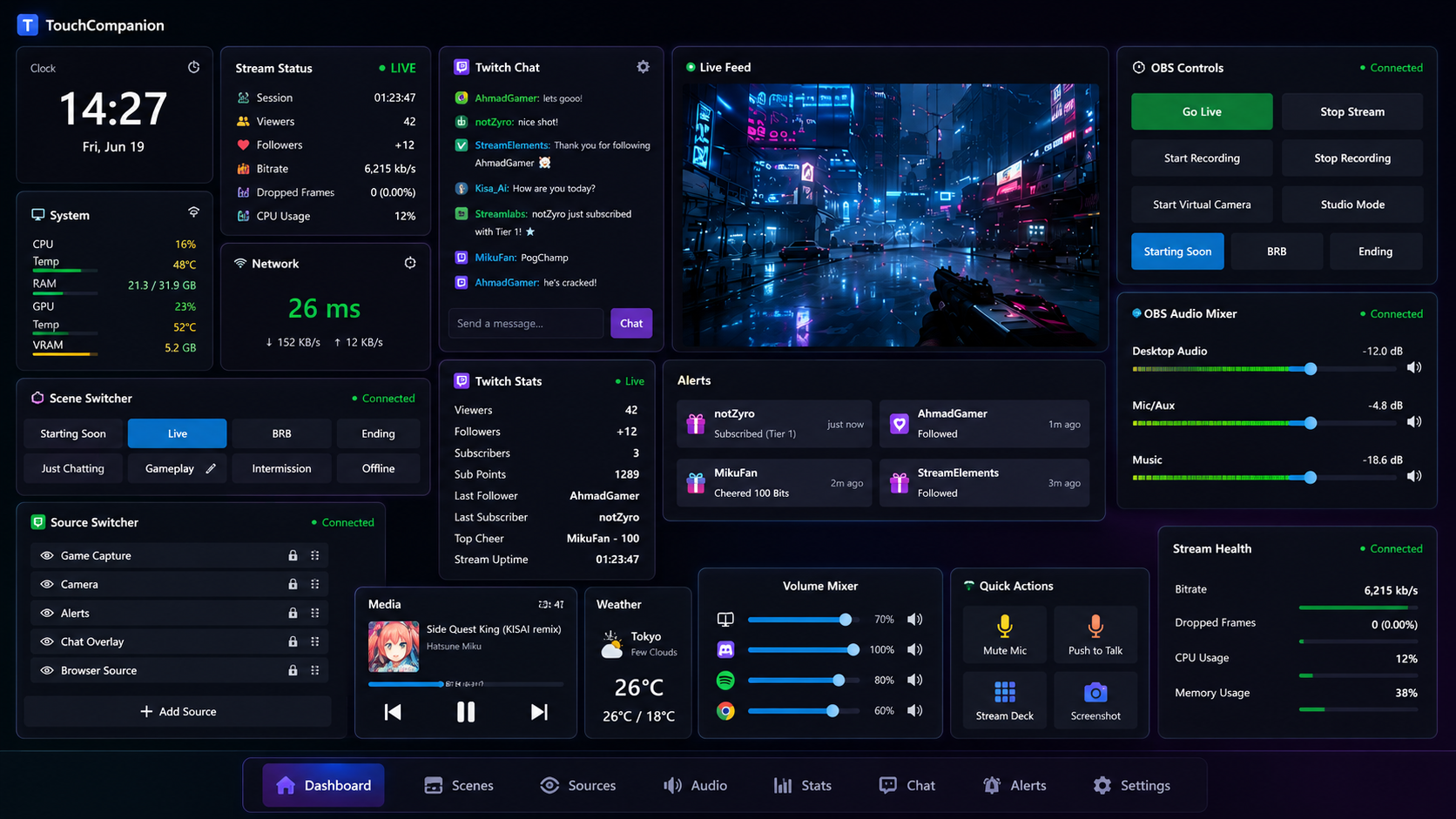
Run your stream from the surface.
TouchCompanion talks to OBS Studio over WebSocket v5, built into OBS 28+. A green dot shows when connected, and every tile reflects changes you make in OBS itself, live.
OBS control
Go live, record, virtual cam, replay buffer and instant-clip, studio mode and take. Buttons turn red when active.
Scene switcher
A dedicated scene grid, tap to switch with the active scene highlighted. Flow, single-column, or grid layout.
Stream health
Per-output bitrate, dropped-frame %, and congestion. Multistream-aware: Twitch and YouTube each get their own row.
Audio mixer & sources
A fader and mute per OBS audio input, plus show/hide toggles for the sources in your current scene.
What you need to run it.
A touch monitor is the point, but the surface runs on any second display. The installer bundles the .NET 8 runtime, so there is nothing else to install.
- Operating system
- Windows 10 (1903+) / 11
- Architecture
- 64-bit
- Display
- Touch monitor (2nd display)
- Runtime
- Bundled (.NET 8)
- Privileges
- Administrator
- Footprint
- Tray app, no main window
Ready to set up your surface?
Downloads are tied to your account. Sign in to grab the latest installer, or browse the source on GitHub.